
Work with production and development spaces
For a new team, create one Production space for content editors and a linked Development space for each developer. Keep production’s schema read-only. Developers change and test schemas in their own spaces, review the impact on production content, then promote their deployed migrations.
All linked spaces belong to the same Storypane installation. Each has its own database, content, media, members, and credentials.
| Space | Who works here | What happens here |
|---|---|---|
| Production | Content editors and release owners | Write, preview, and publish real content; receive reviewed schema promotions. |
| Development | One developer per space | Iterate on blocks, deploy in this dev space, and test with sample content. |
The everyday cycle is sync → change → deploy in dev → test → promote. After a promotion, other developers sync before promoting their own work. Sync is explicit; Storypane does not silently replace anyone’s schema changes.
Set up your team
Sign in to your installed CMS as an installation administrator. Only installation administrators create spaces and provision their databases.
- From Spaces, choose Create space. Name it after the project, such as
Studio website. Select Production and Empty space as its base, then choose Create space. Under Database options, the bundled installation uses Create a database; operators can instead attach a dedicated empty database as described in self-hosting. - Open production’s Settings → General. Leave Schema read-only enabled. This protects block definitions, their library organization, and direct migration deployment. Content editing, preview, and publishing remain available.
- Create another space named for a developer or task, such as
Maya · Homepage redesign. Select Development and chooseStudio websiteas the Base space. Check the displayed production link, choose Review clone, inspect the dependencies, then choose Create space. - Repeat for each developer, using production as the base. Invite content editors to production through Settings → Members & roles. Add each developer to their dev space; give release owners the access needed to deploy in dev and promote to production. Memberships and credentials are configured separately in every space.
For a new empty project, build the first schema in dev and promote it before editors create production stories. The editor quickstart walks through a Page and nested Hero model using this setup.
What cloning copies
Cloning uses the base space’s deployed schema. Deploy any active migration you want included before cloning.
- Block definitions and stable field identities.
- The block library’s Parent block hierarchy.
- Blocks field nesting rules, including allowed definitions and item limits.
- Configured locales and the datasource option lists required by the schema.
Content and media are not copied in bulk. The exception is dependencies required by schema defaults: the clone review lists the stories and original media it must copy, including transitive dependencies, up to 100 stories. Stories use published content when available, otherwise drafts; all target copies start unpublished. Create sample stories and upload test media in dev as needed.
Members, tokens, webhooks, integration credentials, and external option request headers are not copied. Configure previews, credentials, and integrations for each space. Creating another Production space from production creates an independent project, not another destination for the original dev spaces.
Know where you are and switch spaces
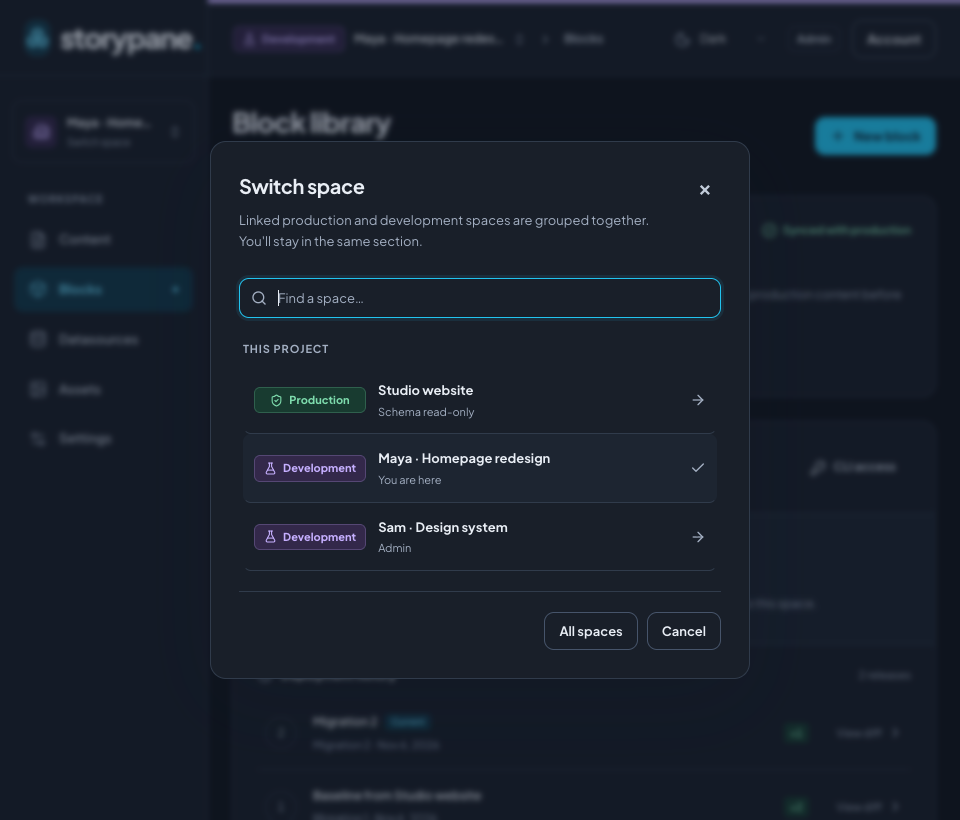
The header always names the current space and shows Development with a violet flask or Production with a green shield. Check the text label before editing content or reviewing a release; the environment is not indicated by color alone.
Choose the space name in the header, or Switch space in the sidebar. Under This project, select the linked production or development space. The switcher keeps your current section, such as Blocks or Content. An open story is not carried across because each space has its own content. Resolve any unsaved-change prompt before leaving.
Change and test a schema in dev
- Open your dev space’s Blocks screen. If it shows Behind production, use Sync from production and review the incoming changes first.
- Add or edit definitions, fields, allowed nested blocks, and library parents. Saving stages changes in this space’s shared active migration.
- In Schema migrations, choose Review migration. Inspect changes and affected content, resolve validation issues, then choose Deploy migration.
- Create sample stories, try nested blocks, and test your frontend preview. Generate frontend types from the deployed dev schema for this testing.
Deploy migration affects the selected space. Deploying in dev does not change production. Each dev space has its own active migration, so separate spaces keep developers from sharing the same schema draft.
Both kinds of nesting travel with migrations: moving a definition under a Parent block changes library organization, while editing a Blocks field changes what editors may nest inside content. Review restrictive nesting changes against production stories before applying them.
Promote to production
You need deployment access in dev and production. Production’s Schema read-only setting can stay enabled: reviewed transfers are the supported way to update it.
- In the dev space’s Blocks screen, sync first if production has advanced.
- Choose Review promotion. The Promote to production dialog names the source dev space and destination production space.
- Review every migration, affected drafts and publications, and any required story, media, or datasource dependencies. This review uses actual production content, which can differ from your sample content.
- Resolve blockers and read any data-loss confirmation. Choose Apply reviewed changes when the reviewed result is ready.
- Switch to production, verify the blocks and content, then generate types from production’s deployed schema and build or deploy the matching frontend.
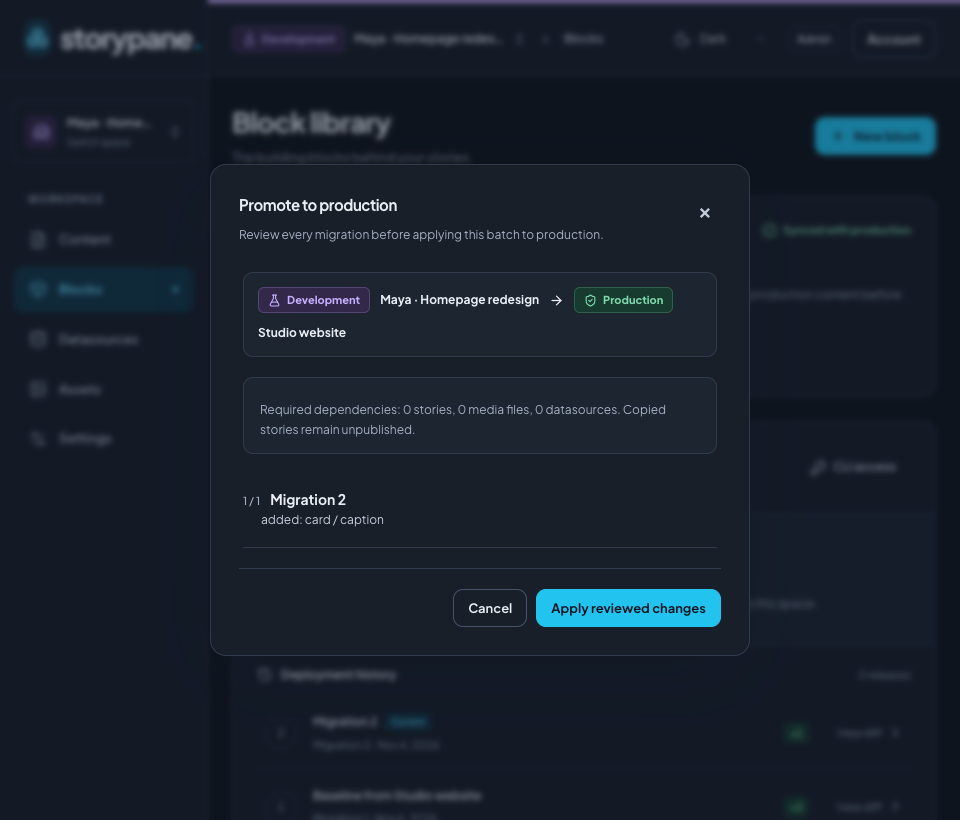
Promotion applies the pending deployed dev migrations in order, in one production transaction. An active schema draft is not included. If a step fails, the batch is rolled back. Drafts and publications migrate separately, so schema promotion never publishes unfinished content edits.
Required dependencies can be copied as unpublished drafts. Copying dependencies preserves existing destination stories and media; schema migrations still transform affected content. Differing required datasource values block a transfer until you reconcile them. Removing fields or tightening nesting can change existing content: review the impact rather than assuming a successful dev deployment guarantees a successful production promotion.
Sync when another developer promotes
Other dev spaces show Behind production after a new production migration. Open Blocks → Sync from production in each dev space, inspect the incoming steps, resolve conflicts, and apply the reviewed changes before promoting again.
Sync reconciles changes by definition and field identity, including block parents. It preserves immutable migration history and reconciles active schema work. Conflicting changes require a dev or production choice. If combined parent moves, deletions, or references would make an invalid schema, the review asks you to choose the complete dev or production schema for that step. Recheck the entire step before applying that choice.
Sync replays the incoming transformations; it does not simply replace the final schema. Review data loss even if the final field types look familiar. Sync is not an ongoing copy of production content into dev. Create representative sample content for testing and rely on promotion review to inspect production impact.
Use the CLI and your frontend
Install or link the SDK CLI. Keep authoring credentials pointed at dev and provide production credentials separately:
export STORYPANE_URL=https://cms.example.com
export STORYPANE_SPACE_ID=your-development-space-id
# Set STORYPANE_MANAGEMENT_TOKEN for dev in your secret store.
# Set STORYPANE_PRODUCTION_MANAGEMENT_TOKEN for the linked production space.

storypane migrations status
# Run only when status reports behind: true.
# storypane migrations sync
storypane migrations pull
storypane migrations create "Add hero caption"
# Edit storypane/migrations/active.json; preserve existing IDs.
storypane migrations push --deploy
# Test the deployed dev schema and frontend.
storypane migrations promote
storypane migrations pull
Uncomment and run sync when status reports incoming production changes. If pull finds an
active migration, edit it instead of creating another. Never reuse a production
token as the dev token. Sync requires deploy access in dev and read access in
production; promotion requires deploy access in both. See the
CLI migration reference
for token scopes, conflict files, interrupted transfers, and CI confirmations.
Use production’s space ID, delivery token, and deployed types in the live frontend. Use dev’s configuration and types in a local or test frontend. Migration version numbers can differ between spaces, even when their schemas match. The production codegen example keeps production snapshots separate from dev authoring files. Configure preview URLs per space, and attach live-site rebuild webhooks to production.
Adopt the workflow for an existing project
An existing production space keeps its previous schema-editing behavior on upgrade. An administrator can enable Settings → General → Schema read-only, then create linked dev spaces from its deployed schema. Finish any active schema work you want in the clone first. Existing production content stays in place.
If you started with an unlinked dev space, create a Production space using that dev space as its base; Storypane links the original dev to the new production space. Create or import real content into production separately. Cloning another dev already linked to production makes a sibling dev linked to the same production; use production as the base when you want a clean starting point.
| What you see | Next step |
|---|---|
| Schema controls are read-only | Switch to a linked dev space. Keep production protection enabled for routine releases. |
| Review promotion is disabled | Deploy your active dev migration, sync if behind, and check deployment permissions in both spaces. |
| A transfer reports a conflict | Resolve the shown choices, review again, and apply the new review. |
| Required datasource values differ | Reconcile that datasource explicitly before reviewing again. |
| CLI pull would overwrite local work | Pull to a separate --out directory and reconcile; see the SDK reference. |
| The live site warns about a schema version | Generate types from production’s deployed schema and rebuild the frontend. |