
Rebuild a Vercel site from Storypane
Connect a Git-backed Vercel project to a Storypane space to rebuild your site after a story publishes or a content release goes live. Your site’s build uses its existing Storypane delivery configuration. You need permission to manage the Vercel project’s Git settings and admin access to the Storypane space.
1. Create a Deploy Hook in Vercel
Open your Vercel project and go to Settings → Git → Deploy Hooks. Name the
hook Storypane, enter the branch that should rebuild, and click Create
Hook. For a live site, use the project’s production branch, which is often
main. Once Vercel creates the hook, copy its URL and keep it private.
Vercel Deploy Hooks documentation
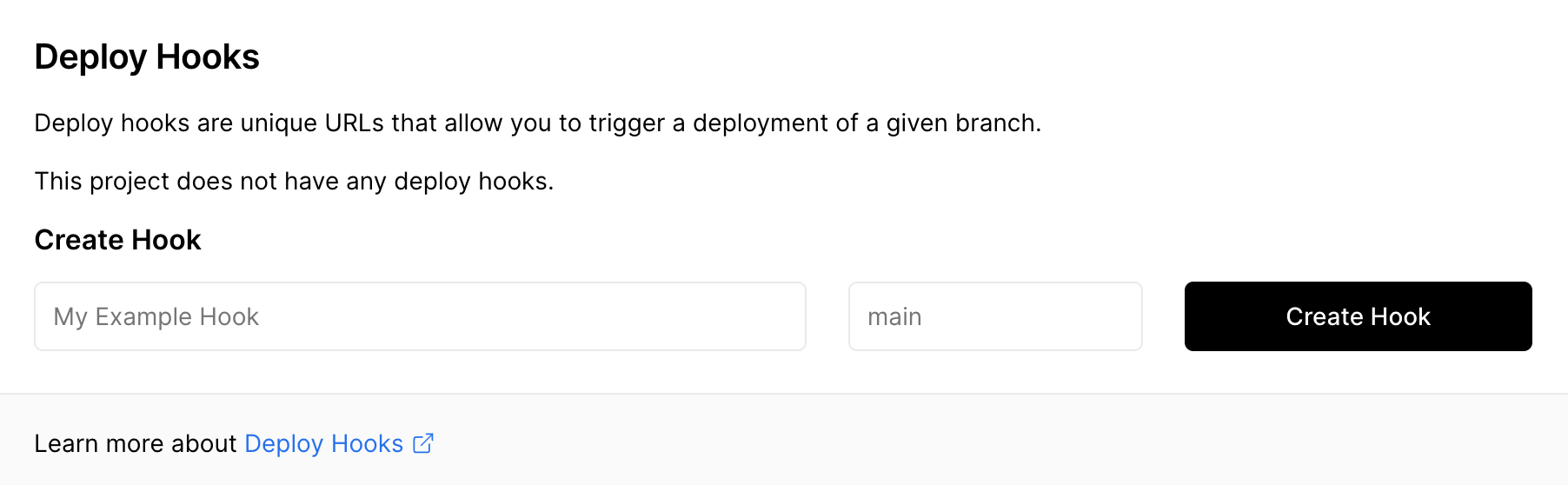
Screenshot from Vercel’s Deploy Hooks documentation.
2. Connect the hook in Storypane
Open the Storypane space your website reads from. Go to Settings → Webhooks and choose Connect Vercel. Enter a name for the connection and paste the generated URL into Vercel Deploy Hook URL.
Leave Story published and Release published selected to rebuild automatically on both events. A multi-page release queues one rebuild after all its pages publish. Clear both checkboxes for manual rebuilds only. Click Save connection.
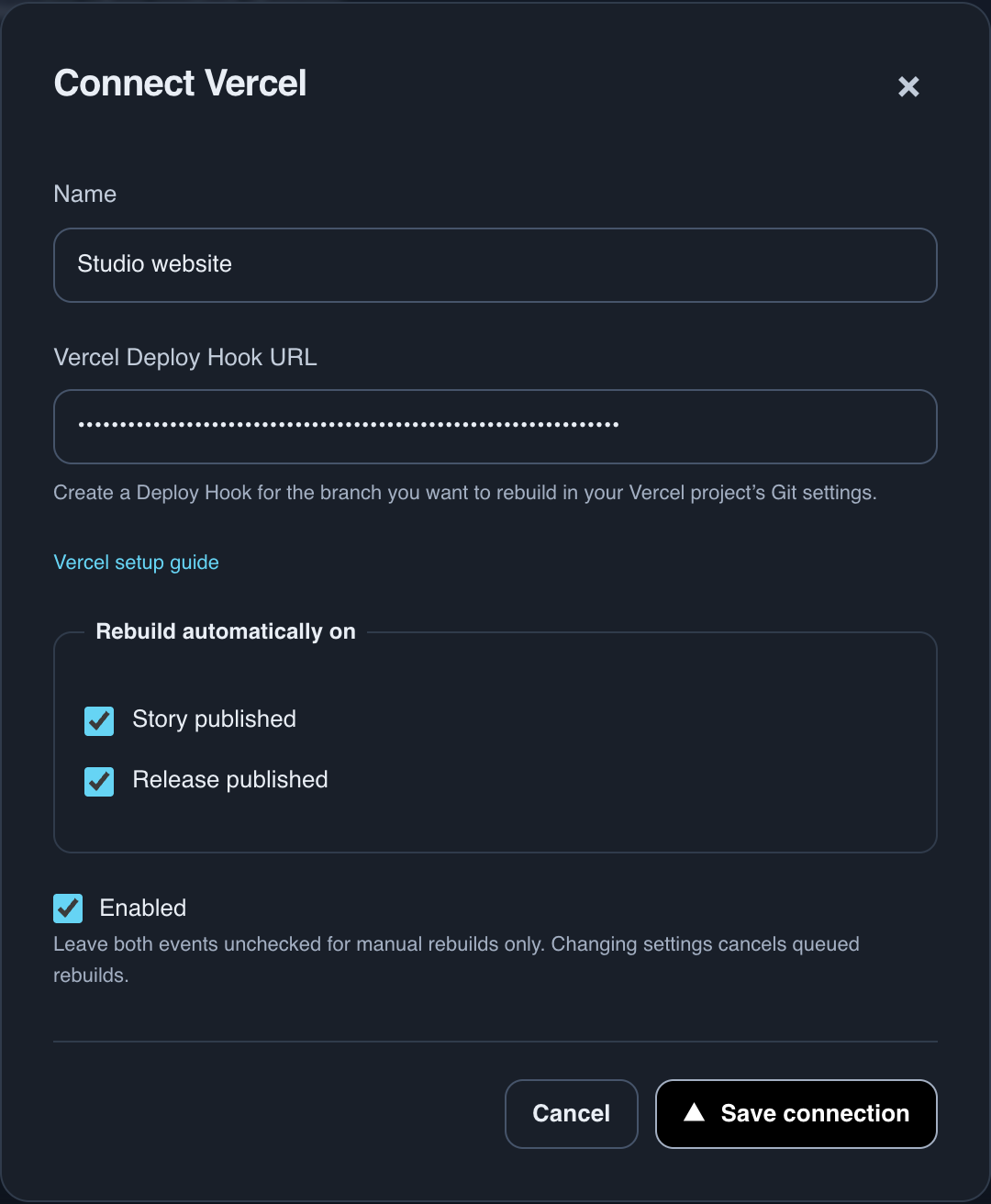
3. Run a test rebuild
Click Rebuild now on the connection. In Delivery logs, use the refresh button beside the close button to check the request. Delivery usually starts within a minute. A green succeeded tag means Vercel accepted the request. Open Deployments in Vercel to follow the build and check the live site when it finishes.
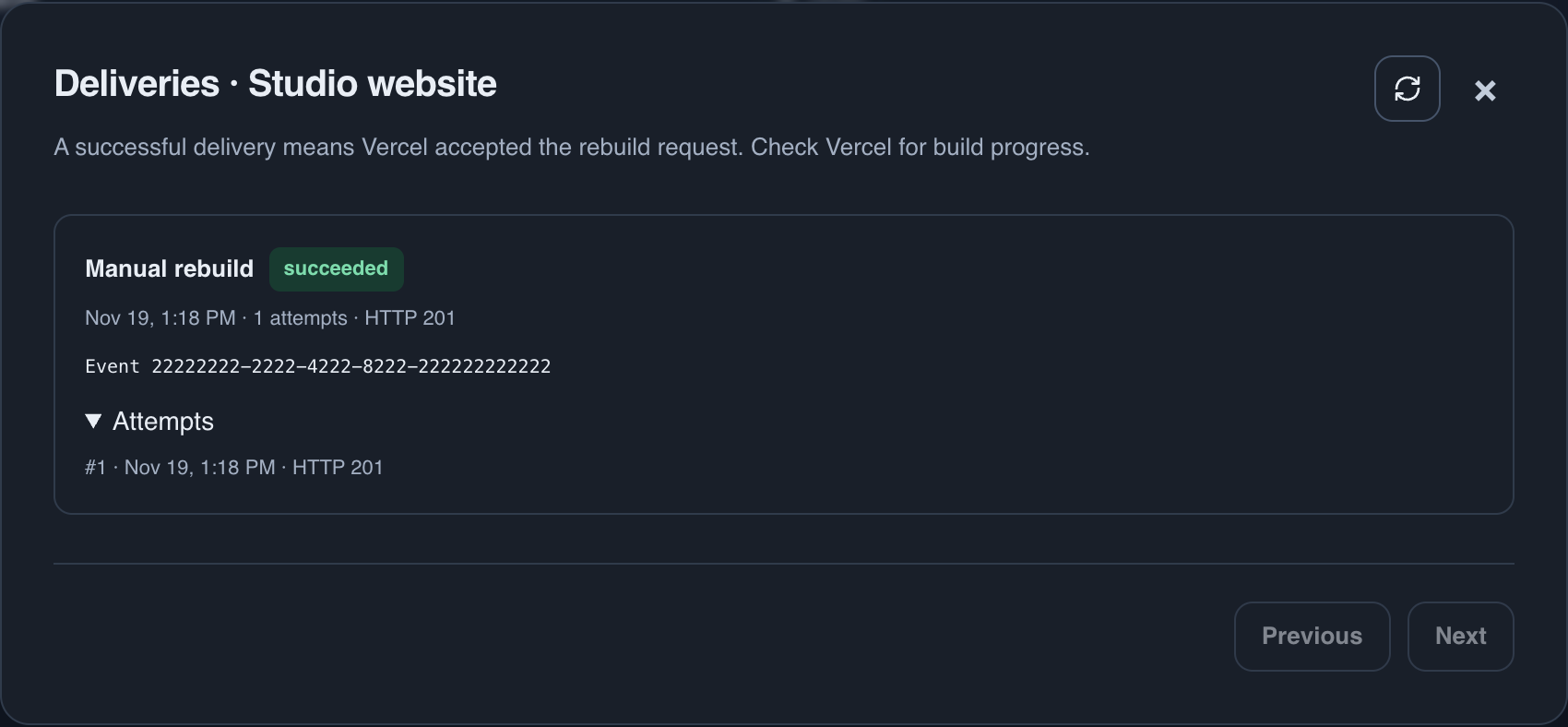
If a delivery shows a red failed tag, expand Attempts for the HTTP status. If you replaced the hook in Vercel, use Edit on the connection to enter its new URL, then choose Retry delivery. If Vercel accepted the request and the build later failed, open that deployment’s build logs in Vercel.